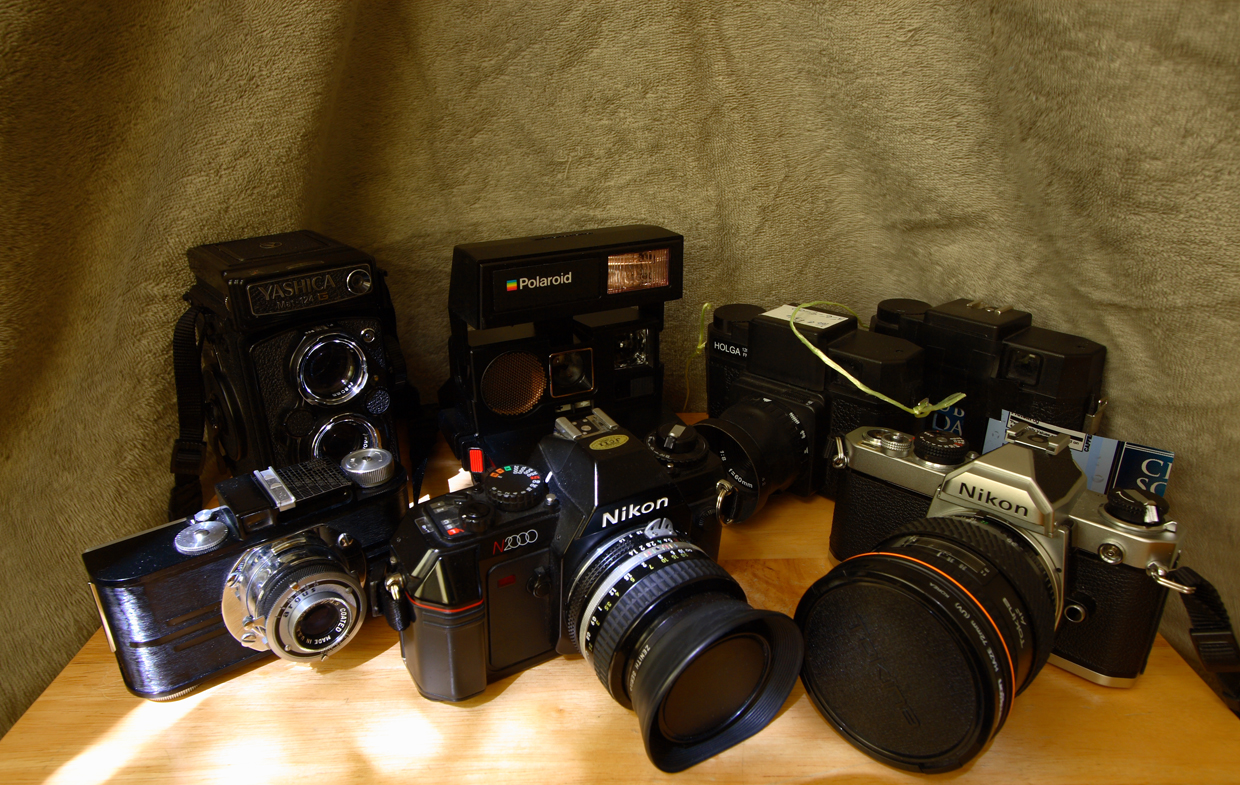
Photos, videos, and office documents often contain metadata: information about how a file was created and modified. Depending on the format, it may include a capture date, camera model, software name, author details, or GPS coordinates. Metadata helps organise files, but it can also reveal information that users did not intend to share. ExifTool is a powerful command-line utility for inspecting and editing this information.
ExifTool is an open-source application and library created by Phil Harvey. It supports a wide range of formats, including JPEG, TIFF, PNG, video, audio, and many document types. Unlike basic file-property panels, it exposes a much broader set of metadata fields and can process many files in one operation.
Install ExifTool
On Debian- or Ubuntu-based Linux systems, install the package from the distribution repository:
sudo apt update
sudo apt install libimage-exiftool-perl
On macOS with Homebrew, use:
brew install exiftoolOn Windows, download the current package from the official ExifTool website, follow its installation instructions, and configure the executable so it can be called from PowerShell or Command Prompt. Prefer official distribution channels and verify the package before using it.
Read Metadata from a File
The simplest command displays the metadata ExifTool can find in a file:
exiftool holiday-photo.jpgThe output may contain many fields. To inspect only location information, request specific tags:
exiftool -GPSLatitude -GPSLongitude holiday-photo.jpgYou can also pass a directory to inspect multiple files. Review the output before sharing a collection of images or documents, especially when the files may contain location or author information.
Remove or Edit Metadata
To remove metadata from a supported file, ExifTool provides the -all= option. For example:
exiftool -all= profile-photo.jpgBy default, ExifTool keeps a backup copy with an _original suffix. If you have verified the command and intentionally want to overwrite the original, add -overwrite_original:
exiftool -all= -overwrite_original profile-photo.jpgYou may prefer to remove only a particular group of tags. For example, to remove GPS metadata while preserving other fields:
exiftool -gps:all= image.jpgProcess Multiple Files
ExifTool can process a directory in one command. The following example removes metadata from files in a folder:
exiftool -all= -overwrite_original Photos/To limit processing to selected file extensions, use the -ext option:
exiftool -all= -overwrite_original -ext jpg -ext png Mixed-Folder/Be careful with recursive processing and overwrite options. Test on copies first, keep a backup of important originals, and inspect the resulting files before deleting anything.
Important Limitations
Removing embedded metadata does not guarantee complete anonymity. Operating systems, cloud services, and social platforms may store separate records or generate new metadata when files are uploaded or re-encoded. Some file formats also rely on particular metadata for orientation, colour profiles, or document behaviour. Removing everything indiscriminately can therefore affect how a file is displayed or used.
Reading Metadata in Bulk and Exporting a Report
Inspecting one file at a time is fine for a single photo, but a collection of hundreds of files calls for a different approach. ExifTool can scan a whole directory and produce a structured report, for example by writing selected tags to a text or CSV-style output. This makes it possible to review an entire shoot or document set in a spreadsheet, sort by capture date or camera model, and spot files that still contain location data before anything is shared.
When building such a report, request only the tags you need. Asking for every available field produces a wide, noisy table that is hard to read, while a focused list of tags such as capture date, camera model, GPS coordinates, author, and software keeps the review practical. Save the report alongside the files so the check can be repeated later, and re-run it after any processing step, since resizing, converting, or re-encoding a file can add or change metadata.
Which Tags Matter Most Before Sharing
Not all metadata carries the same risk. Location coordinates are usually the most sensitive, because they can reveal a home address, a workplace, or a regular route. Author names and software identifiers can reveal who created a file and which tools they use, which matters more for work documents than for holiday photos. Capture dates can reveal when someone was somewhere, and device serial numbers can link files to a specific camera or phone.
A sensible review order is to check location first, then author and device information, then dates. For photos shared publicly, removing location data is usually the minimum. For documents shared outside an organisation, author names and revision history deserve the same attention. The point is not to strip everything indiscriminately, but to know what is in the file and to decide deliberately what should travel with it.
Preserving Useful Metadata While Removing Sensitive Fields
Blanket removal is simple, but it can also destroy information worth keeping. Photographers often want to preserve copyright, camera settings, and colour profiles, while removing only GPS coordinates. Archivists may want to keep creation dates and descriptions. ExifTool supports selective removal, so you can delete one group of tags, such as GPS, while leaving the rest untouched.
The safest workflow is to work on copies first and compare the result with the original. Check that the image still displays with the correct orientation, that colours look right, and that any fields you intended to keep are still present. Some formats store the same information in more than one place, so verify the output rather than assuming a single command caught everything. Keeping the original file in a private archive means the removed information can be recovered if it turns out to be needed later.
Metadata in Videos and Documents
Photos get most of the attention, but videos and office documents carry metadata too. Video files can include recording location, device model, and creation date, while documents can contain author names, editing history, and comments left by reviewers. The exact fields depend on the format and the application that created the file, so a tool that only understands photos will miss them.
ExifTool handles many of these formats, but the commands and the tag names differ. For documents, the safest approach is often to use the application’s own inspection feature as well, since it understands revision history and hidden content that a general tool may not expose. Whatever the format, the routine is the same: inspect first, decide what should stay, remove the rest, and verify the result before sharing.
Building a Simple Pre-Share Routine
A routine that takes a minute is far more likely to be followed than one that takes twenty. A practical version has four steps: copy the files to a separate folder, inspect the metadata in that folder, remove the fields you do not want to share, and open a few resulting files to confirm they still look and behave correctly. Only then should the cleaned copies be uploaded or sent.
For repeated work, a short script that runs the same commands each time removes the need to remember flags and options. Keep the script in a known place, document what it removes and what it keeps, and review it occasionally as file formats and sharing habits change. The goal is not perfection on a single file, but a habit that protects every file you share without slowing you down.
Conclusion
ExifTool provides precise control over metadata, from simple inspection to selective removal and bulk processing. Use it as one part of a broader privacy routine: inspect files before sharing, remove only what is unnecessary, preserve originals, and review the privacy settings of the platform receiving the files. For a related topic, see our guide to protecting cybersecurity and digital privacy.
Komentar (0)
Belum ada komentar. Jadilah yang pertama berkomentar.