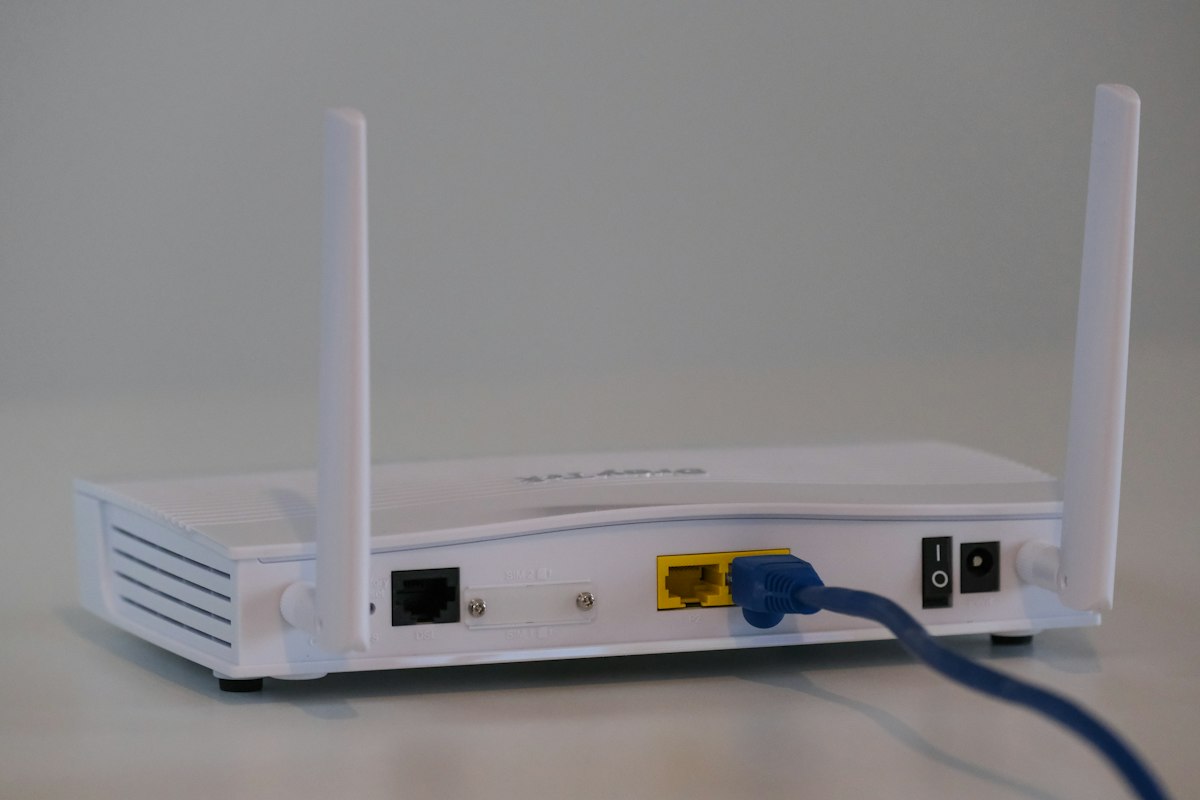
Home Wi-Fi router security starts with understanding that your router connects phones, laptops, smart TVs, cameras, and various other devices to the internet. If router settings are left with default credentials or outdated firmware, the network becomes easier to misuse. Securing your router doesn’t have to be complicated; start with a few basic settings, then check them regularly.
1. Change the Administrator Password
The password to access your router’s admin panel is different from your Wi-Fi password. Replace the default credentials with a unique, lengthy password, and store it in a password manager. If your router supports separate administrator accounts, use an account with minimal privileges for daily use.
2. Use WPA2-AES or WPA3
Choose WPA3-Personal if all your devices support it; otherwise, WPA2-AES is still better than older protocols like WEP or outdated mixed modes. Use a hard-to-guess Wi-Fi password. Avoid WPA/TKIP and WEP. A unique network name (SSID) helps identify your network, but hiding the SSID is not a substitute for encryption.
3. Update Firmware
Check the manufacturer’s official website or panel for firmware updates. Enable automatic updates if the feature is trustworthy and available. If your router no longer receives security updates, consider replacing it—unpatched vulnerabilities can remain exploitable even with a strong password.
4. Disable Unnecessary Features
Turn off remote administration from the internet, PIN-based WPS, UPnP, or other services if you don’t need them. Some smart home devices require specific connections, so document your configuration before making changes and test devices after disabling features.
5. Create a Guest Network and Separate IoT Devices
A guest network provides internet access without opening access to your main devices, provided your router implements proper isolation. For IoT devices that rarely need to communicate with laptops or NAS units, use a separate network or VLAN if your router supports it. The name “guest” alone doesn’t guarantee isolation; verify client isolation settings and local network access restrictions.
If you want to understand segmentation better, continue with the article on differences between 2.4 GHz and 5 GHz Wi-Fi for connectivity aspects, and Zero Trust principles for access restriction concepts.
6. Check Connected Devices
Review your router’s client list every few weeks. Change your password if you find unrecognized devices, then reconnect legitimate ones. Device names can be inaccurate, so match MAC addresses or device information before concluding there’s an intruder.
7. Consider DNS and DNS over HTTPS
Use a trusted DNS resolver and understand its privacy policy. DoH can protect DNS queries from observation along the path between your device and the resolver, but it doesn’t encrypt all internet traffic and doesn’t guarantee all domains are safe. Read the DNS over HTTPS guide before changing your entire network’s configuration.
8. Protect Physical Access and Settings
Place your router in a secure location, save configuration backups if supported, and note how to perform a reset. Factory resets typically erase all settings, so ensure your ISP credentials and important configurations are available before doing one. Don’t upload configuration backups that may contain secrets to public locations.
Quick Checklist
- Unique admin and Wi-Fi passwords.
- WPA3 or WPA2-AES encryption.
- Firmware still supported and updated.
- Internet administration, legacy WPS, and unnecessary features disabled.
- Guest/IoT networks separated when possible.
- Client list checked regularly.
Common Router Settings People Overlook
Beyond the headline settings, several smaller options are easy to miss and worth checking. One is the router’s time and time zone setting: if the clock is wrong, scheduled features such as parental controls and automatic updates may run at the wrong time, and logs become hard to read when you are investigating a problem. Another is the DHCP lease range and address reservations. Giving important devices such as a printer or a network drive a reserved address makes troubleshooting easier, because you always know where to find them on the network.
Check whether your router broadcasts any services you do not use, such as a built-in media server, file sharing, or a print server. Each enabled service is another piece of software that could have a vulnerability, so turn off the ones nobody in the household uses. The same logic applies to the router’s mobile app and cloud management features: convenient, but they create an additional login path into your network. If you enable cloud management, protect that account with a strong password and multi-factor authentication, and review which devices are linked to it.
Also look at the firewall and port settings. Most home routers block incoming connections by default, which is the right starting point. Only open a port when a specific service genuinely needs it, document why it was opened, and close it again when the need ends. Port forwarding rules that were set up years ago for a game or a camera are often forgotten and left open long after they are useful.
Plan for a Router That Stops Getting Updates
Every router eventually reaches the end of its support life. The manufacturer stops releasing firmware, and newly discovered vulnerabilities stay unpatched. When that day comes, a strong password no longer compensates, because the flaw is in the software itself. Knowing how to recognise this moment is part of good home network security.
Check the manufacturer’s support page for your model and note the support status. If the model is listed as end-of-life, or if no firmware update has appeared for a long time while newer models keep receiving them, start planning a replacement. Budget for it as you would for any other household device that wears out, and research the replacement before you are forced to buy in a hurry.
When you do replace the router, do not simply throw the old one away with its settings intact. Perform a factory reset so stored passwords, Wi-Fi keys, and ISP credentials are erased. Then set up the new router from scratch rather than restoring a backup from a very old firmware version, which may carry forward settings that no longer make sense. A fresh setup is also a good moment to review the checklist in this article and apply it cleanly.
Keep the Whole Household on Board
Router security fails when only one person understands it. If you change the Wi-Fi password and forget to tell a family member, they may reset the router to regain access and undo all your settings. If a visitor needs internet access, the guest network exists precisely so you do not have to share the main password. Explain these basics to everyone in the household in plain language: which network to use, who to ask when something stops working, and why they should not press the reset button without talking to you first.
Write down the essentials in a safe place: the admin password, the Wi-Fi password, the router model, and the steps to reach the admin panel. Store this note where a trusted family member can find it if you are away, such as in a password manager with emergency access. Without it, a simple problem such as a forgotten password can turn into a full reset and a long evening of reconfiguring everything.
For households with children, the router’s parental controls can help, but they are not a substitute for conversation. Explain what the controls do and why they exist, and review them together as children grow older. Controls that feel arbitrary are more likely to be worked around; controls that are understood tend to be respected, and they also teach good habits that carry over to other devices.
Review Your Network on a Schedule
A secure router is not a one-time project. Put a short review on your calendar every few months: check for firmware updates, review the connected device list, confirm that remote administration is still off, and verify that the guest network and IoT separation are still in place. Each check takes only a few minutes once you know where the settings live.
During the review, also think about what has changed in the household. A new smart TV, a camera, or a work laptop each adds a device with its own needs and risks. Add new devices to the right network segment from the start, rather than letting them join the main network by default and sorting it out later. The same applies when a device leaves the household: remove it from the client list and change the Wi-Fi password if you are unsure who still has it.
Finally, keep a simple record of what you changed and when. A short note such as “firmware updated, guest network enabled, old camera removed” helps you spot patterns over time and makes the next review faster. Good documentation is not only for offices; at home it is what turns a secure router from a lucky setup into a repeatable habit.
Conclusion
A secure router depends on updates, strong authentication, and access restrictions. Apply changes one at a time, document your configuration, and ensure household members can still use the devices they need after changes.
References
Follow home network safety guidance from CISA Secure Our World and security documentation from your router manufacturer.
Komentar (0)
Belum ada komentar. Jadilah yang pertama berkomentar.